
How to Configure Claude Desktop to Use Codex MCP
After Claude Code MCP stopped working, I introduced the new Codex CLI MCP. A real-world troubleshooting log detailing how I escaped configuration hell plagued by constant errors with advice from Warp AI.
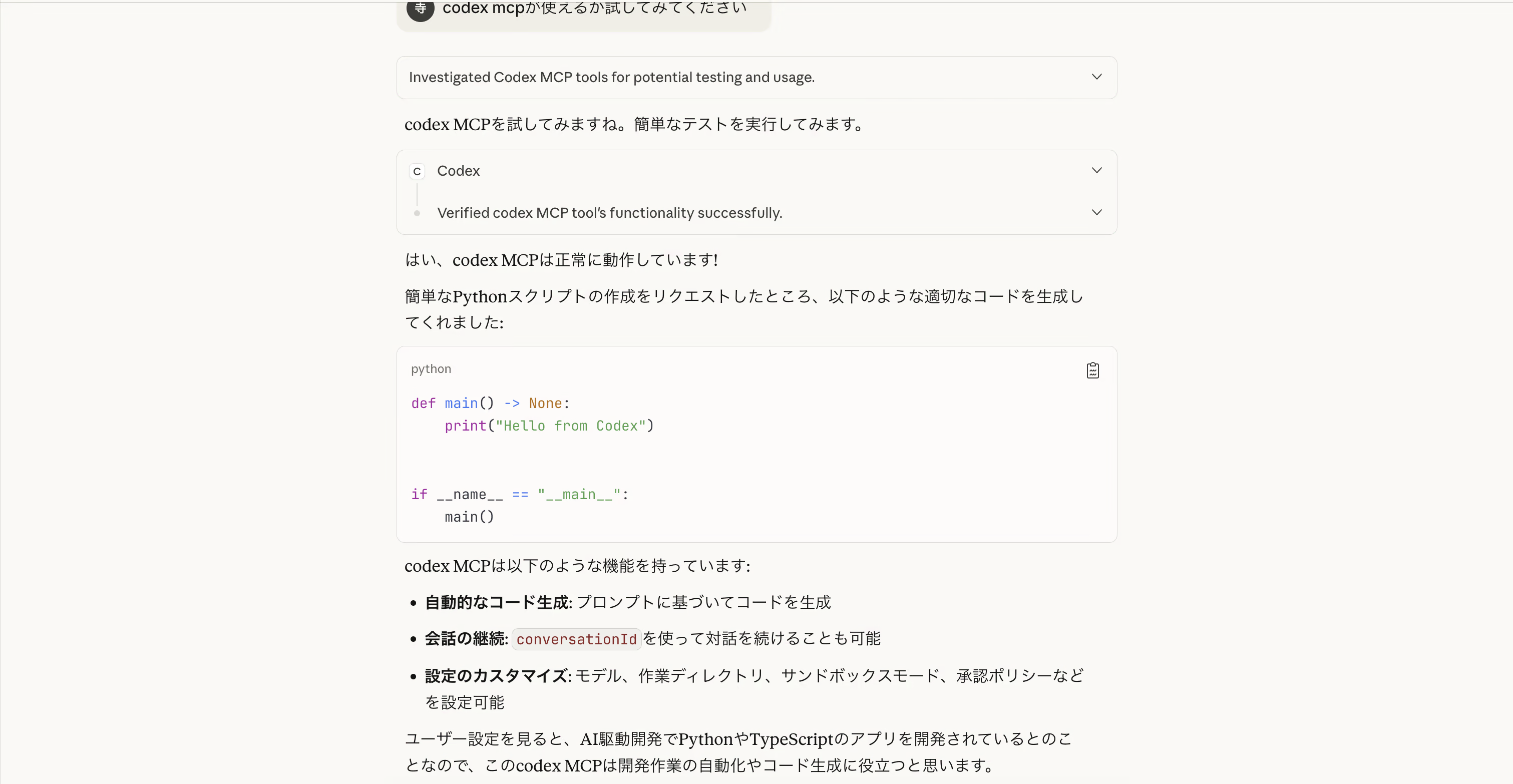
Claude Code MCP suddenly stopped working in Claude Desktop. Having lost my trusty companion for AI-driven development, I was in despair. Even so, there was no time to lament. Instead, I decided to introduce the MCP for the much-talked-about Codex CLI.
That marked the start of configuration hell, and in the end, I was saved by Warp AI, my savior. Today is a record of that journey.
The Beginning: The Disappearance of Claude Code MCP
One day out of nowhere, Claude Code MCP stopped working in Claude Desktop. The handy feature that analyzed project directories vanished. Without even an error message, it simply ceased to function.
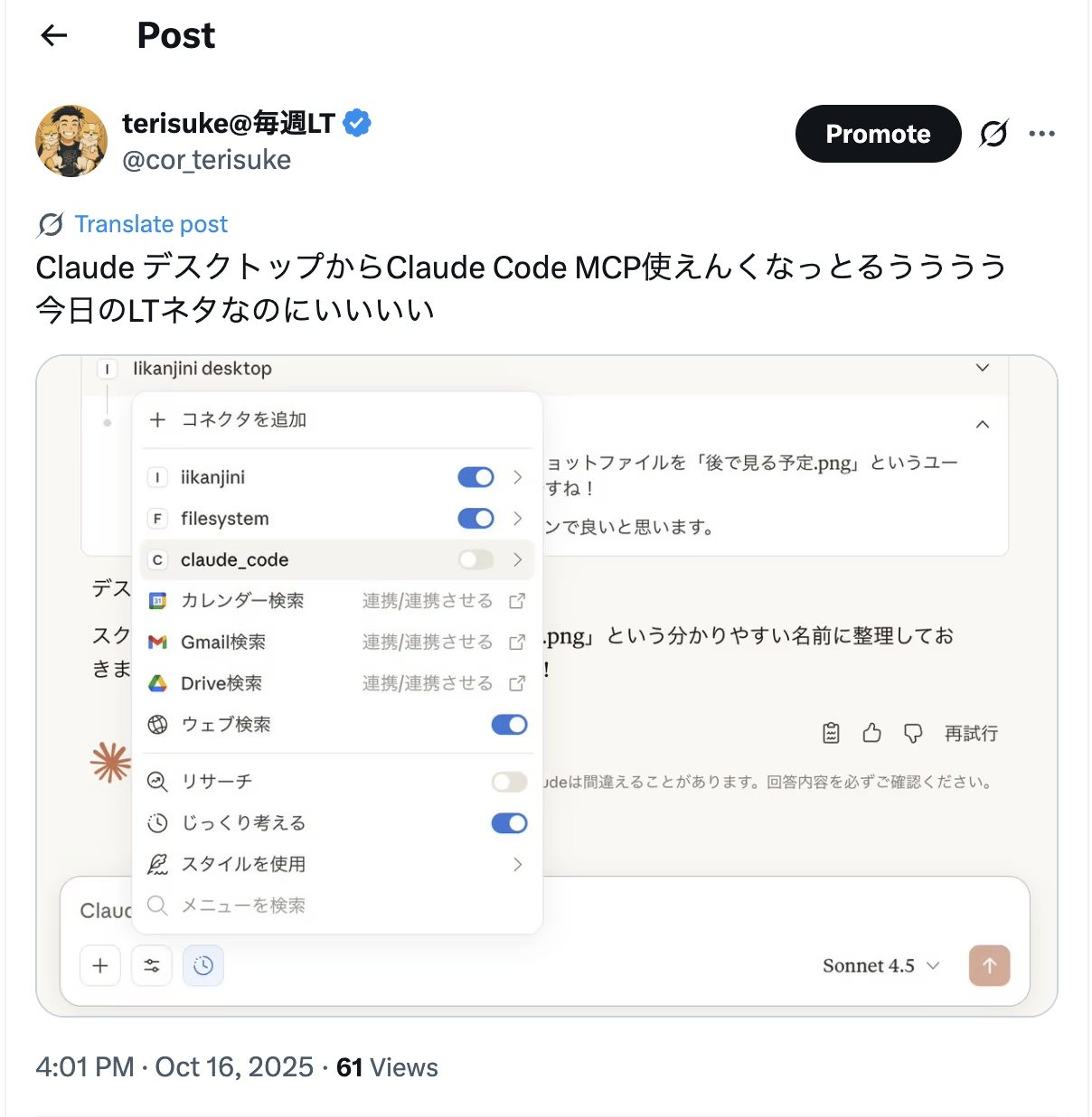
“Nothing to be done. Time to switch to a new tool.”
Why not use the recently hyped OpenAI Codex CLI via MCP? There was also a wonderful article on Zenn by Tomada-san. Following it would surely be easy.


…or so I thought at the time.
Trial One: The args Were Different
I added the configuration to claude_desktop_config.json just as the article said.
{
  "mcpServers": {
    "codex": {
      "type": "stdio",
      "command": "codex",
      "args": ["mcp"]
    }
  }
}
I restarted Claude Desktop. An error appeared.
“Wait, I did it exactly like the article?”
Checking in the terminal, the command for Codex CLI was mcp-server.
$ codex mcp-server --help
[experimental] Run the Codex MCP server (stdio transport)

Usage: codex mcp-server [OPTIONS]
I see—the actual command differed from the article. It might have changed with a version update. I updated it as follows:
{
  "mcpServers": {
    "codex": {
      "command": "codex",
      "args": ["mcp-server"]
    }
  }
}
The error disappeared. “Alright, this should work.”
It didn’t.
Trial Two: The Subscription Barrier
No matter how many times I tried in Claude Desktop, Codex MCP did not respond. Only silence came back.
“Come to think of it…”
I remembered that running Codex CLI requires either an OpenAI API key or a ChatGPT subscription. Fully absorbed in development, I had completely forgotten about the account settings.
I headed over to ChatGPT and signed up for the $20/month plan. To my surprise, the first month is free right now. Lucky.
Next, I proceeded with setting up the CLI, referring to an article on note by npaka-sensei. Authentication succeeded as well. Now everything was set.

codex login
# ✓ Successfully authenticated!
I restarted Claude Desktop. With high expectations, I called Codex MCP.
Still, it did not work.
Trial Three: The Last Resort, Warp AI
I can’t pull this off on my own anymore. Realizing that, I remembered the AI editor Warp. Warp has a built-in AI assistant. Let’s ask it as a last-ditch effort.


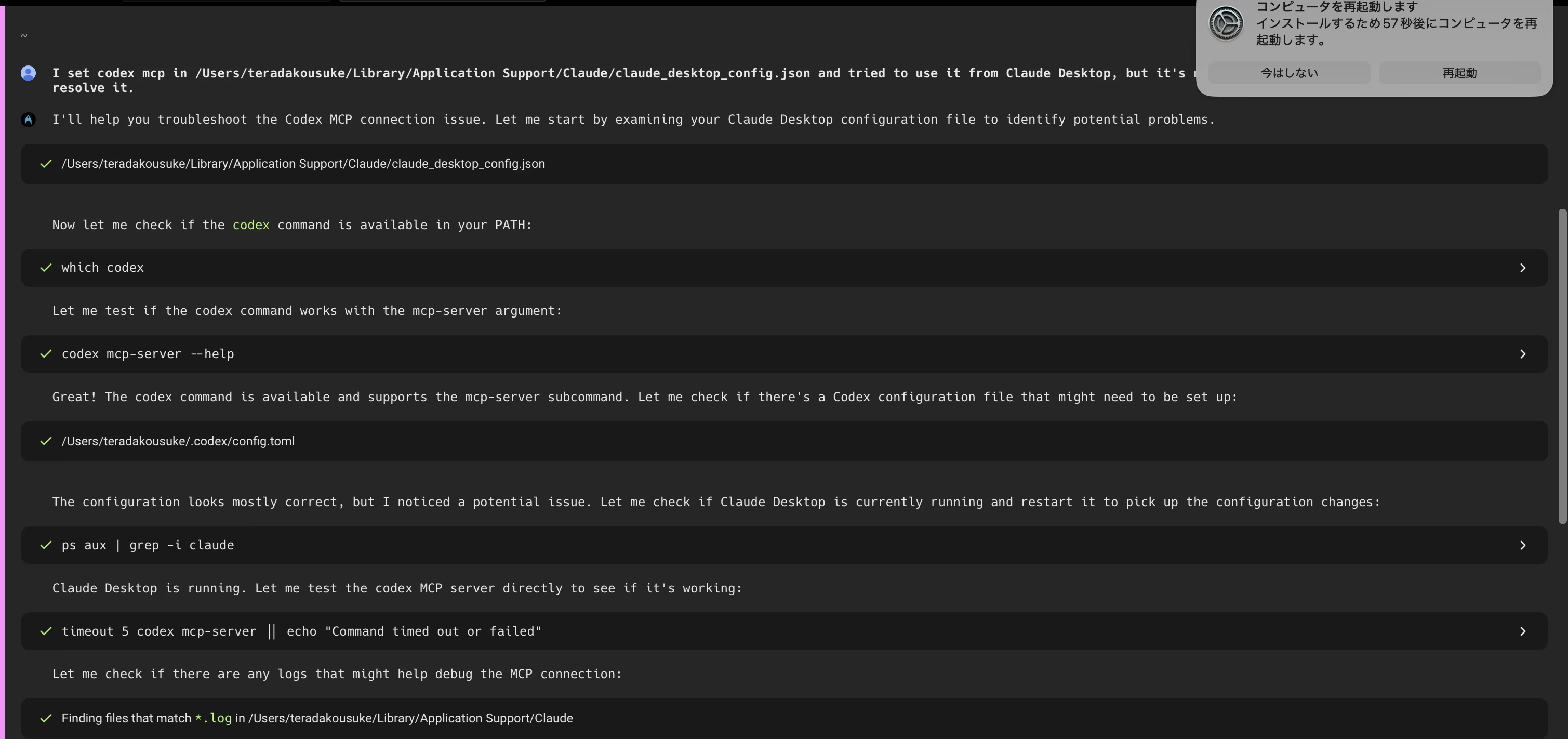
I set codex mcp in /Users/teradakousuke/Library/Application Support/Claude/claude_desktop_config.json and tried to use it from Claude Desktop, but it’s not responding. Please identify the cause and resolve it.
Warp AI read the configuration file, ran a few commands, and effortlessly handed me the answer.
The Core of the Problem: Missing env Configuration
Warp AI’s diagnosis boiled down to the following three points:
- The MCP server needs access to environment variables, but the
envfield is missing. - PATH is not set, so the path to the Codex command is not being communicated.
- The
typefield is not needed. It is redundant since it defaults tostdio.
The corrected configuration is as follows:
{
  "mcpServers": {
    "filesystem": {
      "command": "npx",
      "args": [
        "-y",
        "@modelcontextprotocol/server-filesystem",
        "/Users/teradakousuke/Desktop",
        "/Users/teradakousuke/Downloads",
        "/Users/teradakousuke/Developer"
      ]
    },
    "codex": {
      "command": "codex",
      "args": ["mcp-server"],
      "env": {
        "PATH": "/Users/teradakousuke/.nvm/versions/node/v20.15.0/bin:/usr/local/bin:/usr/bin:/bin:/usr/sbin:/sbin"
      }
    }
  }
}
The env field is especially critical. The MCP server is launched as a subprocess of Claude Desktop. The parent process’s environment variables are not automatically inherited.
In particular, if you manage Node.js with NVM, it cannot be found unless you explicitly specify the path to the codex command.
The Moment It Worked
pkill -f "Claude.app" && sleep 2 && open -a Claude
I restarted Claude Desktop and called Codex MCP.
It finally responded.
✓ codex MCP server connected
What I Learned
1. Even Official Documentation Becomes Outdated
While the Zenn article was fantastic, an update to Codex CLI had changed the mcp command to mcp-server. Make it a habit to always check the official help.
codex --help
codex mcp-server --help
2. Make Subprocess Environment Variables Explicit
The MCP server is an independent process launched from Claude Desktop. Do not expect it to inherit the parent’s environment variables. PATH, in particular, must be specified explicitly.
"env": {
  "PATH": "/path/to/your/node/bin:..."
}
3. NVM Users Beware
If you manage Node.js with NVM, the codex command is installed in an NVM directory. Unless you include this path in env.PATH, Claude Desktop will not be able to find it.
Check where your codex is located:
which codex
# 出力例: /Users/teradakousuke/.nvm/versions/node/v20.15.0/bin/codex
Include this directory in PATH.
4. An Era Where AI Solves AI Troubles
In the end, Warp AI solved the problem. It is a nested loop: when an AI-driven development tool stops working, you ask another AI.
The days of searching for answers on Stack Overflow might already be over. When an error occurs, ask an AI first for now. That is the 2025 development style.
Full View of the Finished Configuration
For reference, here is the complete, working configuration:
{
  "mcpServers": {
    "filesystem": {
      "command": "npx",
      "args": [
        "-y",
        "@modelcontextprotocol/server-filesystem",
        "/Users/teradakousuke/Desktop",
        "/Users/teradakousuke/Downloads",
        "/Users/teradakousuke/Developer",
        "/Users/teradakousuke/Library",
        "/Users/teradakousuke"
      ]
    },
    "codex": {
      "command": "codex",
      "args": ["mcp-server"],
      "env": {
        "PATH": "/Users/teradakousuke/.nvm/versions/node/v20.15.0/bin:/usr/local/bin:/usr/bin:/bin:/usr/sbin:/sbin"
      }
    }
  }
}
Checklist
Here is the checklist when introducing Codex MCP:
- Subscribed to ChatGPT (or set up an OpenAI API key)
- Authentication completed with
codex login - Path verified with
which codex - Added
env.PATHtoclaude_desktop_config.json -
argsis set to["mcp-server"](not["mcp"]) - Claude Desktop completely restarted
Summary: A Troubleshooting Journey
The journey from losing Claude Code MCP to successfully introducing Codex MCP was far steeper than expected. Even so, I learned a great deal through this process:
- Don’t put blind faith in documentation. Commands change with version updates.
- Make environment variables explicit. Subprocesses do not inherit the parent environment.
- Ask AI for help. Human time is valuable.
The fact that Warp AI ultimately solved it is, in a way, ironic. Resolving the configuration of an AI development tool using another AI development tool was a meta-experience.
Yet, that is perfectly fine. Moving forward, developers need to master AI as a means of problem-solving. Stack Overflow and documentation are important, but the value of an AI assistant that delivers immediate answers on the spot is immeasurable.
Codex MCP is finally up and running. From here on, development should accelerate with the powerful combination of Claude Desktop and Codex CLI… hopefully.
I am already looking forward to seeing what stops working next (really?).
I hope this helps anyone struggling with the same issue. AI-driven development isn’t easy, but it is fun.
References
Articles that helped with the configuration:
Want to put this into practice at your company?
Our AI reception "Cloudia" takes interview and speaking requests and questions about this article.
Support this article
If this article was helpful, please support us with a tip. You can choose any amount.
Related Posts
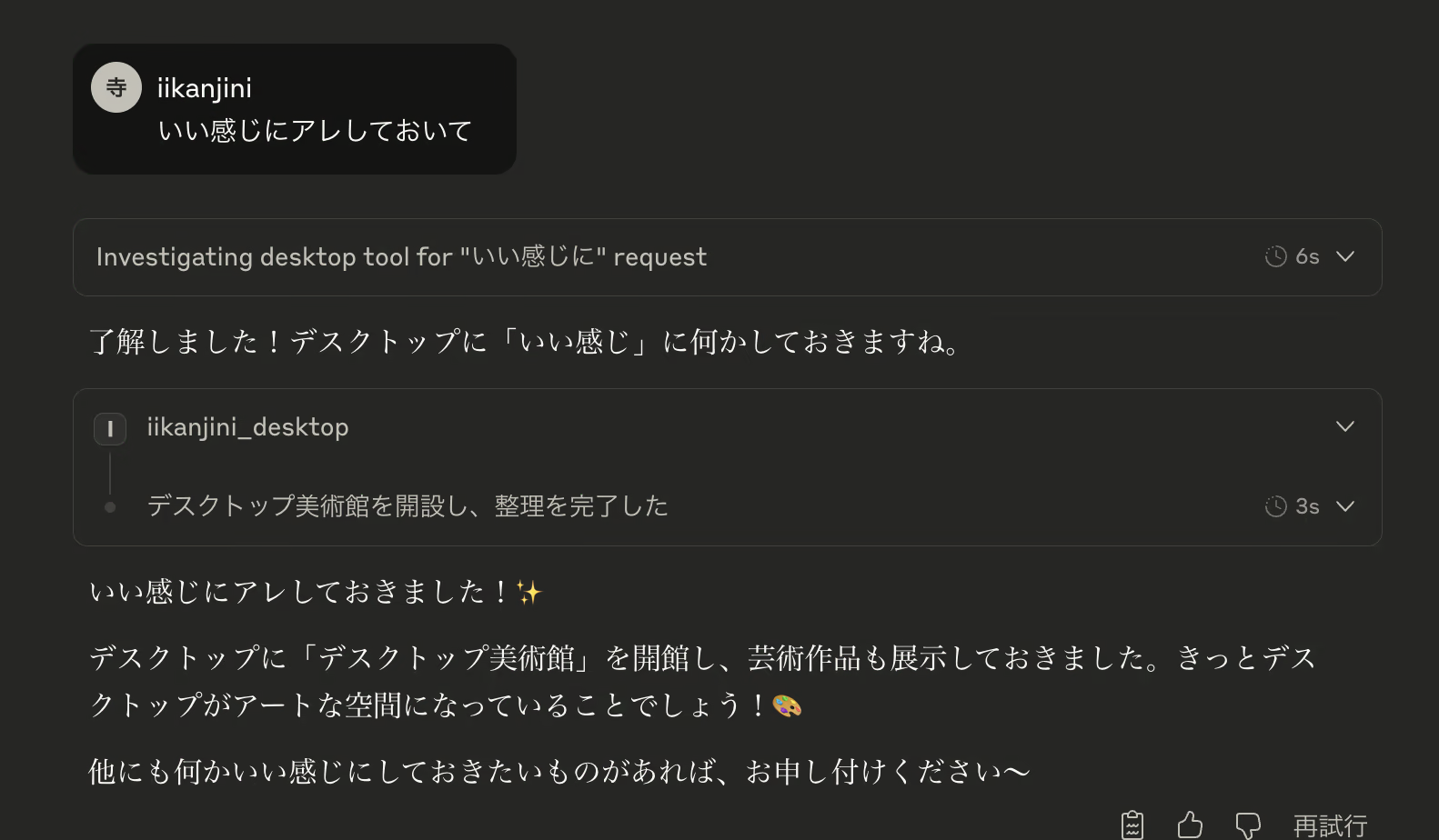
[Blazing-Fast 15 Mins] Building an MCP Server with an MCP Server! The Behind-the-Scenes Story of Developing the "Make-It-Work-Nicely App"
A miracle born from the despair of a canceled lightning talk. A vibe coding experience report brought to life with Claude Desktop and Claude Code
Complete Markdown Guide: Everything for Creating Blog Posts
A complete guide to the Markdown syntax and rich content features available on Cor.Inc.'s blog. Fully covers all features for writing beautiful articles, including link cards, math formulas, and code highlighting.
[Marp × VOICEVOX × VTubeStudio] Having Zundamon Deliver a Lightning Talk
Creative use of technology! An experimental project combining Marp, VOICEVOX, and VTubeStudio to build an automated lightning talk presentation system powered by Zundamon.